Navigate the logbook dashboard
What you'll do
The logbook dashboard gives you an overview of every logbook in your organization and shows how active each one is in the current event. Use it to see where activity is happening, find a logbook you haven't opened yet, or create a new logbook.
Before you start
- You are in an event (named or default)
- You have a role with at least View permission on Logbooks (the built-in Editor role has this)
Steps
-
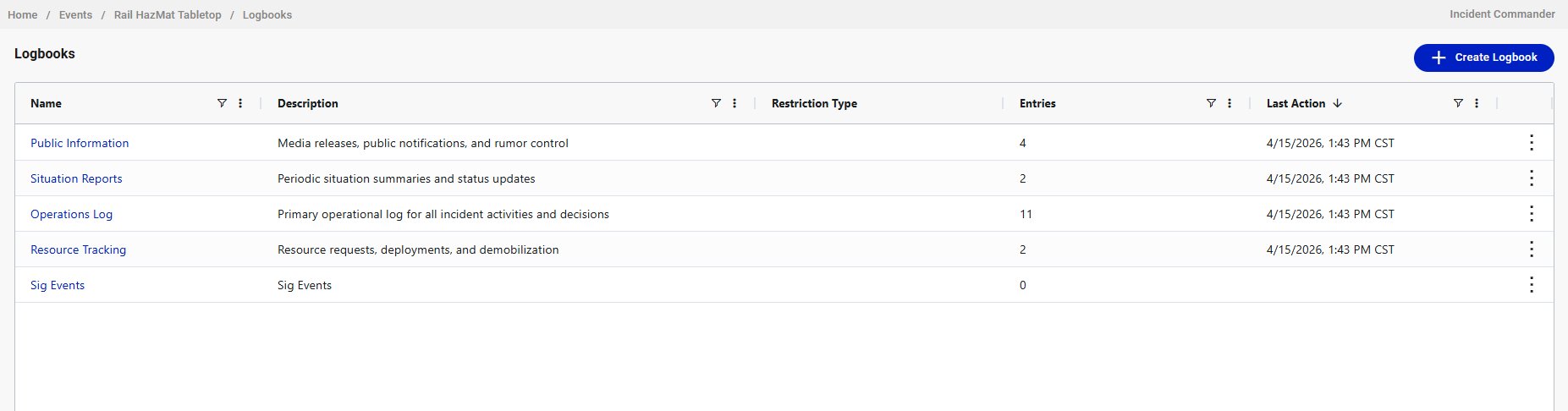
Click the logbook icon in the left navigation. The logbook dashboard appears.
-
Review the dashboard columns:
a. Name: the logbook name. Click it to open the logbook in the tabbed view.
b. Description: what the logbook is for. Helps you find the right place to post.
c. Entries: the number of entries in this logbook for the current event. A zero means no entries have been posted to this logbook in this event, not that the logbook is empty across all events.
d. Last Action: when the most recent entry was posted in this event.
-
Click a logbook name to open it.
Result
The logbook opens in the tabbed view, showing the entry list with the quick-entry input at the top. The logbook is added to your tab strip if it wasn't already there.
Tips
- The dashboard always shows every logbook in your organization, regardless of which event you're in. The entry counts and timestamps change when you switch events.
- Use the dashboard to spot quiet logbooks during an event. If the Resource Tracking log has zero entries during an active response, that might mean the logistics section hasn't started logging yet.
- The + Create Logbook button in the top right creates a new organization-level logbook. This is typically an admin or setup task, not something done during an active event.