Change the event status
What you'll do
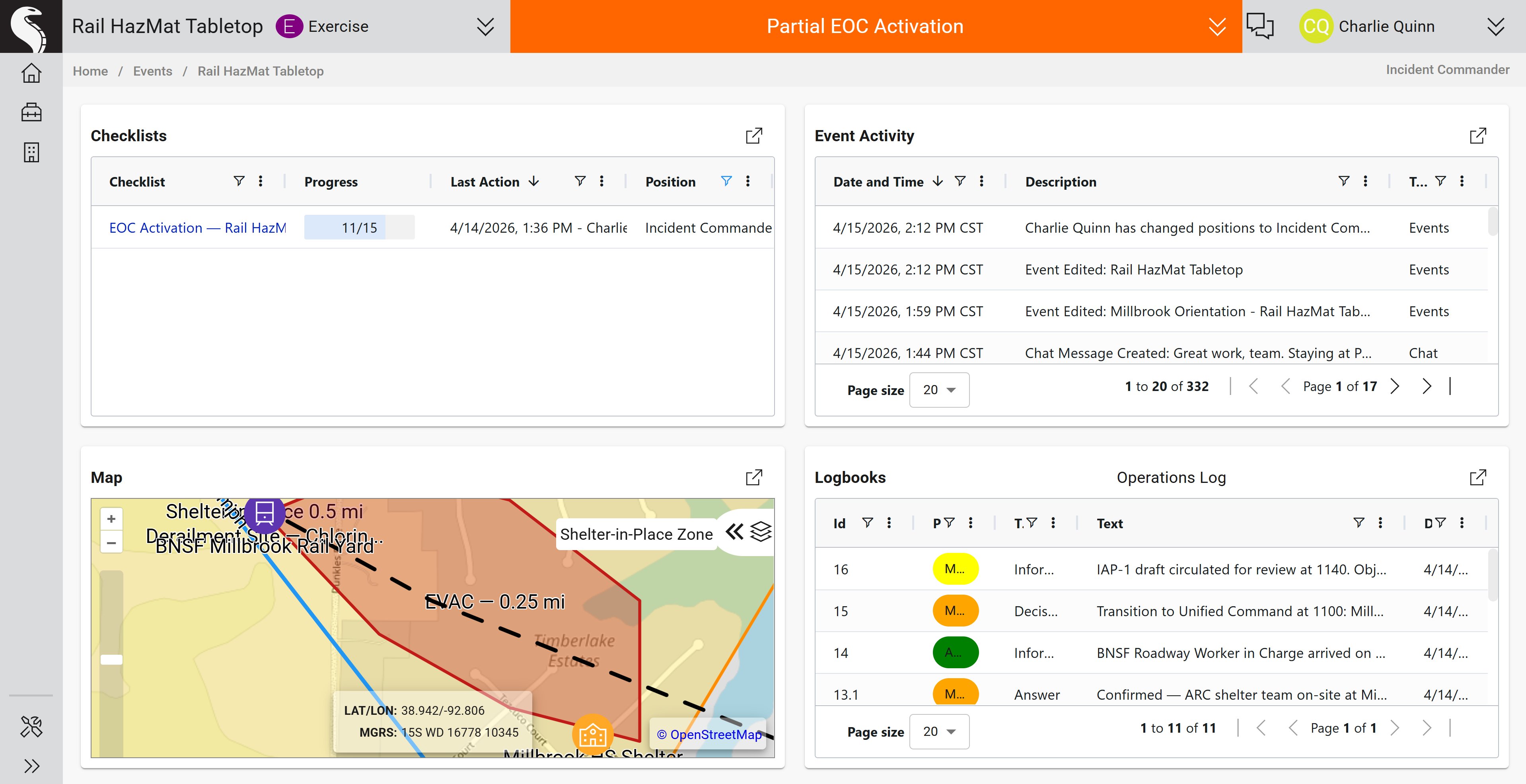
Set or change the event status to communicate the current posture of the event at a glance. The status appears as a colored banner at the top of the event landing page and is visible to everyone working in the event.
Before you start
- You are in the named event whose status you want to change
- You have a role with permission to change event status
- Your organization has event statuses configured. COBRA ships with a default set of statuses as part of onboarding, so this is usually already true. If the status menu is empty, an administrator can add statuses in Manage Event Status Options
Steps
-
On the event landing page, click the colored status banner at the top of the screen. If no status is set, the banner appears neutral.
-
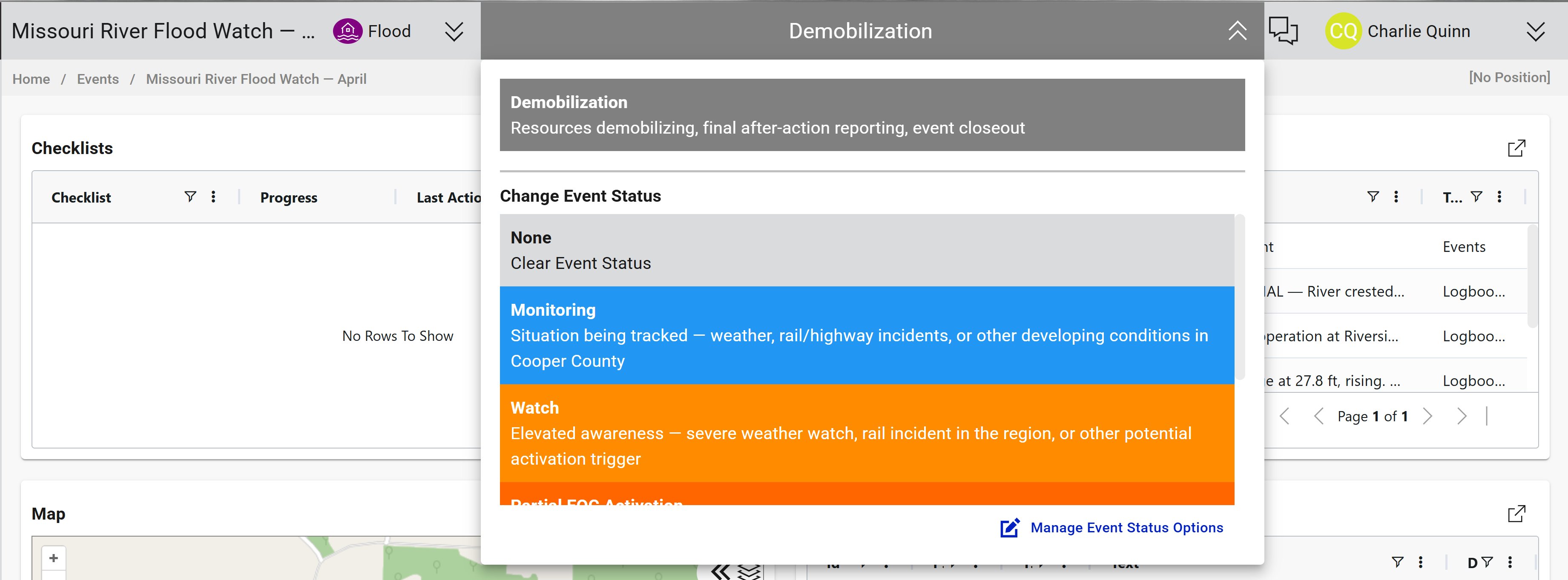
The Change Event Status menu opens, showing all available statuses with their colors and descriptions.
-
Click the status that matches the current posture of the event. Common examples:
- Standby: crews on standby, situation being monitored
- Alert: elevated readiness, resources being pre-positioned
- Active Response: active emergency operations underway
- Under Control: incident contained, transitioning to recovery
- All Clear: incident resolved, units returning to service
-
The banner updates immediately to reflect the new status.
Result
The colored banner at the top of the event landing page updates to the new status. The change is recorded in the event timeline with the user, position, and timestamp. Everyone currently working in the event sees the updated status.
Tips
- Status options and their colors are configured per organization. Your list will look different from the examples above.
- To clear a status entirely, choose None (labeled "Clear Event Status") at the top of the menu.
- If the status you need doesn't exist, an administrator can add it via the Manage Event Status Options link at the bottom of the dialog.
- Treat status changes as communication. Update promptly when the posture changes so teammates see the right picture when they open the event.