Update event details
What you'll do
Change the name, dates, location, type, category, description, or operational period of an event after it was created. Use this when plans change (the start moves earlier), the record needs correcting (wrong location), or the event evolves (a weather watch escalates to a warning).
Before you start
- You are in the named event you want to update (the top bar shows the event name)
- You have a role with Edit permission on Events
Steps
-
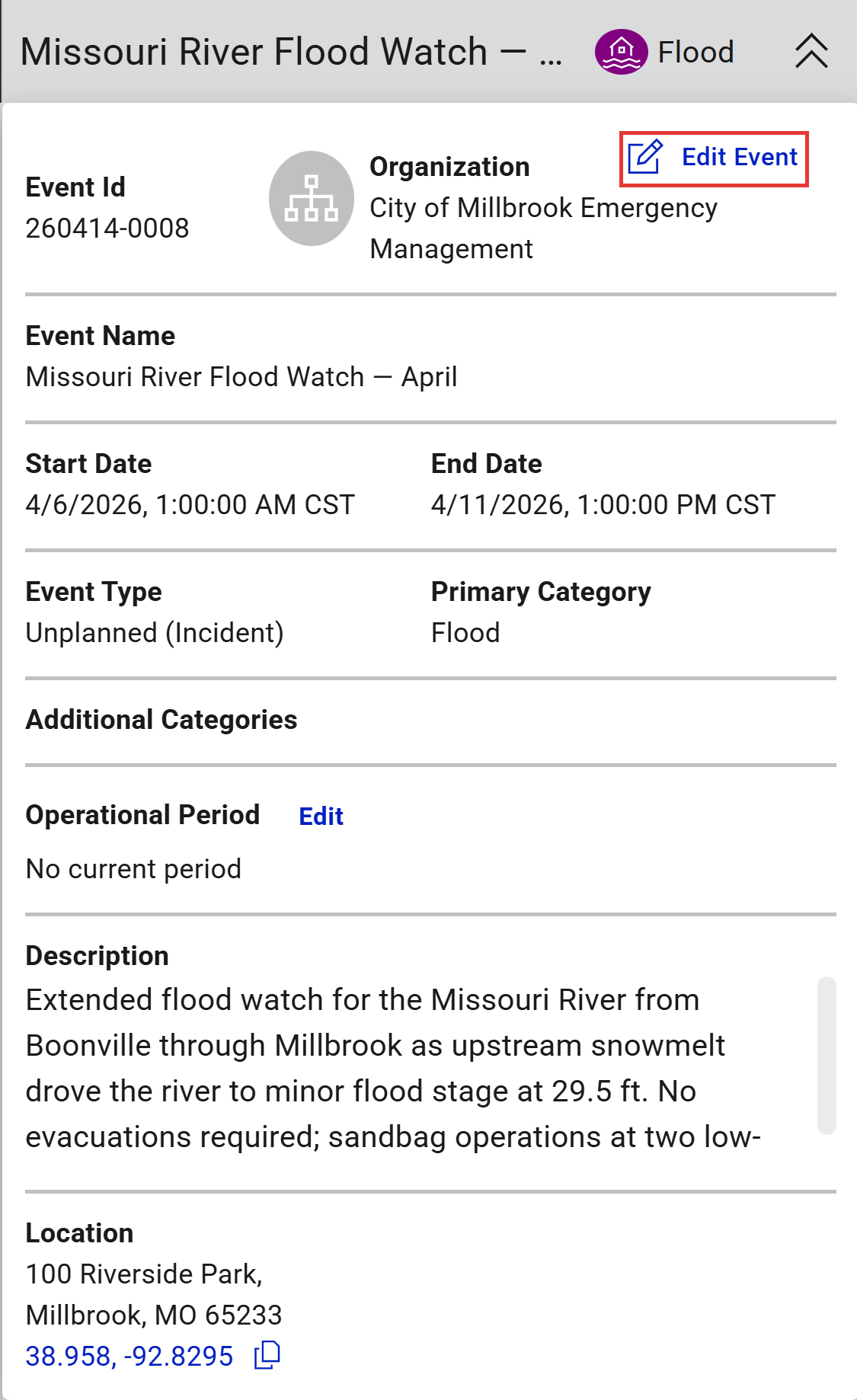
Click the event name in the top bar, to the left of the status banner. The event details flyout opens.
-
Click Edit Event in the flyout header. The event edit form opens.
-
Update any fields that need to change. You can edit:
- Name
- Start and End dates and times
- Time Zone
- Type (changing the type may reset available categories)
- Primary Category and Additional Categories
- Description
- Location (pin, coordinates, or address)
- Operational Period
-
Click Save Event. The flyout and all event views update with the new details.
Result
The changes are saved and immediately visible to everyone working in the event. The update is recorded in the event timeline with the user, position, and timestamp.
Tips
- Changing the Start date rewrites the reference point for the event timeline, but it does not move existing logbook entries, map annotations, or status chart data. Those keep their original timestamps.
- Changing the Type can remove categories that were only available under the old type. If that matters, note the current category before switching and reapply after.
- The event details flyout is read-only except for the Edit Event link and the Edit link next to Operational Period. Field values in the flyout itself are not editable in place.
- If you need to end the event rather than update it, see End or archive an event.